Post
A Queue for Every Little ChatGPT Window
Small tools, sharp edges, real workflows.
I wanted a simple thing: open multiple ChatGPT tabs, give each tab its own list of prompts, and let each tab work through its own queue without talking to the others.
No global dashboard. No browser extension ceremony. No backend. No account-level automation. Just a small control panel inside each ChatGPT tab:
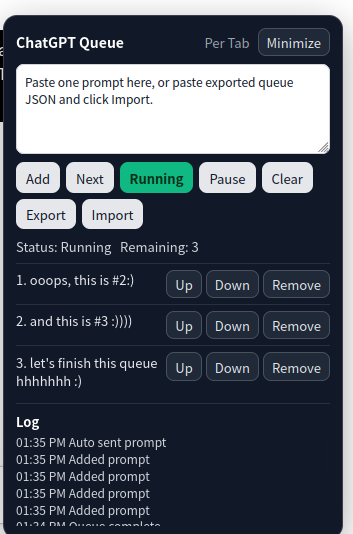
- Add a prompt to the current tab's queue.
- Start or pause that tab's queue.
- Send one prompt manually when I want control.
- Export or import a queue if a tab might be closed.
- Reorder or remove individual queue items.
- Keep a small local log so I can tell what happened.
The final script is here:
https://gist.github.com/N0zoM1z0/dbe2a796b4075ad6825f138bffce6bbe
The interesting part was not the amount of code. It was the set of tradeoffs that turned a quick userscript into a useful little workflow tool.
The Core Constraint: Per-Tab Isolation#
The main requirement was not "send prompts automatically." That part is straightforward enough.
The real requirement was this:
If I have three ChatGPT tabs open, tab A must never read, modify, or send tab B's queue.
That immediately rules out a naive localStorage design. localStorage is shared across the same origin, so every https://chatgpt.com tab would see the same data. Useful for global state, bad for isolated tab queues.
The better fit is sessionStorage.
sessionStorage is scoped by origin and browser tab. That means each ChatGPT tab gets its own storage bucket, and the queue survives refreshes in that tab but disappears when the tab is closed. For this project, that behavior is almost exactly what we want.
So the storage model became very simple:
sessionStorage["cgpt_per_tab_queue_v2"]
sessionStorage["cgpt_per_tab_running_v2"]
sessionStorage["cgpt_per_tab_minimized_v2"]
sessionStorage["cgpt_per_tab_logs_v2"]
Each tab owns its queue. No cross-tab broadcast. No shared worker. No extension background script.
That single decision kept the architecture small.
Why a Userscript Instead of a Browser Extension?#
A full browser extension would make sense if I wanted a global dashboard:
- List all ChatGPT tabs.
- Assign queues to tabs.
- Pause every tab at once.
- Persist everything globally.
- Coordinate work across windows.
But that was not the workflow.
The workflow was local and tab-scoped. A Tampermonkey script was enough because it could inject UI directly into the page, read and write the composer, and store tab-local state with sessionStorage.
This is one of those cases where the boring answer is the right answer. The smallest tool that matches the trust boundary wins.
The First Version: A Queue Loop#
The MVP loop looked like this:
If queue is not running, do nothing.
If queue is empty, stop.
If ChatGPT is generating, wait.
If ChatGPT is idle, send the next prompt.
Repeat.
The UI was a fixed panel in the bottom-right corner:
- A textarea for adding prompts.
AddStartPauseClear- A list of pending prompts.
That worked in spirit, but the first real test exposed a subtle bug.
Bug 1: "Idle" Is Not the Same as "Send Button Enabled"#
The first version treated ChatGPT as idle only when the send button was enabled.
That sounds reasonable until you remember that an empty composer usually means the send button is disabled. When the queue is waiting to send the next prompt, the composer is empty. So the script concluded:
Send button disabled -> ChatGPT is not idle -> wait foreverThe fix was to split the logic:
- Idle detection should check whether ChatGPT is currently generating.
- Sending should fill the composer first.
- Only after filling the composer should the script wait for the send button to become enabled.
That changed the model from "is the send button ready?" to "is the page ready for me to prepare a message?"
Small distinction. Big difference.
Bug 2: The Textarea Had Invisible Text#
The panel textarea accepted pasted text, and the queue replay worked, but the text looked blank.
The cause was boring and classic: page styles leaking into injected UI.
The fix was to explicitly style the textarea:
background: #ffffff;
color: #111827;
-webkit-text-fill-color: #111827;
caret-color: #111827;
For injected UI, I now treat explicit colors as mandatory. If the host page owns the cascade, your userscript UI should not rely on defaults.
Bug 3: Long Prompts Are Not Multiple Prompts#
The first parser split pasted text on blank lines. That seemed convenient:
Prompt one

Prompt two

Prompt three
But real prompts often contain paragraphs, code blocks, examples, and long instructions. A single large prompt can easily contain dozens of blank lines.
One test paste turned into roughly sixty queue items.
That was wrong. The better rule was:
One click on
Addmeans one queue item.
If I paste a long prompt, it should stay intact. If I want multiple prompts, I can click Add multiple times.
This is a good example of a UX rule beating a clever parser. Explicit user action is less surprising than implicit text splitting.
Bug 4: Match Rules Matter#
At first the script matched all of:
https://chatgpt.com/*That made the panel show up on the ChatGPT home page too, which was noisy and unnecessary. The script only needs to run on GPT pages and conversation pages.
The match rules became:
// @match https://chatgpt.com/g/*
// @match https://chatgpt.com/c/*
Userscripts are easy to over-inject. Tight match rules are part of the product.
Bug 5: Blocked-State Detection Was Too Broad#
The script originally scanned the whole page text for strings like:
captcha
rate limit
message limit
try again later
That created false positives. If an old conversation, prompt, or page text mentioned "rate limit", the queue could pause even though manual prompting still worked.
The fix was to stop scanning document.body.innerText.
Instead, blocked-state detection now checks only visible alert-like UI:
role="alert"role="dialog"- assertive live regions
- toast or error containers
It also ignores text inside chat messages.
That is a better heuristic: detect active UI state, not historical page content.
Bug 6: A Filled Composer Is Not a Sent Prompt#
The most interesting failure showed up during longer reasoning sessions.
Sometimes the script would successfully place the next prompt into the composer, but the send action would not complete cleanly. The button might not be clickable yet. The UI might lag. The page might transition more slowly than expected. From the queue's point of view, this created an awkward half-state:
- The next prompt was already sitting in the composer.
- The queue was no longer clearly advancing.
- Clicking blindly again could be dangerous.
That last part matters because the send button does not stay a send button forever. Once a response starts, the same region can become a stop button. A naive retry can accidentally interrupt the response it just started.
So the send path had to become more disciplined:
- Fill the composer.
- Wait for a real send button.
- Refuse to click if a stop button is already visible.
- After clicking, confirm that sending actually started.
That confirmation step turned out to be the key. A click is not enough. The script now treats sending as successful only if one of these is true:
- A stop button appears.
- The composer content clears.
- The composer content changes away from the prompt that was just injected.
If none of that happens, the script assumes the send was not confirmed. In auto mode, that is treated as a recoverable failure:
- Put the prompt back at the front of the queue.
- Keep the queue in the running state.
- Wait briefly.
- Try again.
Hard failures still pause the queue. Recoverable failures do not.
That small distinction fixed the worst UX edge case: a prompt sitting visibly in the composer while the queue quietly fell out of running state.
The Panel Grew Up#
Once the core loop worked, the missing features became obvious.
Export and Import#
sessionStorage is perfect for per-tab isolation, but it disappears when the tab is closed. That is exactly the right default behavior, but sometimes I want to preserve a queue before closing a tab.
So the panel gained Export and Import.
Export creates JSON:
{
  "version": 1,
  "exportedAt": "2026-01-01T00:00:00.000Z",
  "queue": [
    "Prompt one",
    "Prompt two"
  ]
}
Import accepts either that object format or a raw JSON array.
One UX lesson here: an Import button with an empty textarea is confusing. The script now tries to read from the clipboard when the textarea is empty, but the reliable workflow is still simple: paste exported JSON into the box, then click Import.
Move, Remove, and Reorder#
A queue with only Clear is fine when there are two items. It is painful when there are twenty.
Each queued item now has:
UpDownRemove
This is not sophisticated, but it changes the tool from a demo into something I can actually use.
A Log Area#
Automation without logs is a guessing game.
The panel now records recent actions:
12:01 Added prompt
12:03 Auto sent prompt
12:08 Manual sent prompt
12:10 Send not confirmed; retry scheduled
12:13 Queue paused: blocked state detected
The log is intentionally small and local. It is not analytics. It is not history. It is just enough context to know what the tab did.
Manual Next#
Auto-run is useful, but sometimes I want a tab to wait for me.
The Next button sends exactly one prompt from the queue, but only if ChatGPT appears idle. This supports a semi-automatic workflow:
Prepare queue.
Wait for current response.
Click Next.
Review result.
Click Next again.
That mode feels safer for prompts where the output of one step influences whether I want to continue.
Minimize#
The floating panel is useful until it covers something.
So it now has Minimize and Expand.
Collapsed mode keeps only:
ChatGPT Queue Paused / 3 ExpandThe minimized state is also stored in sessionStorage, so each tab remembers its own panel state independently.
A Note on DOM Automation#
This script is intentionally pragmatic, not magical.
It looks for common ChatGPT composer and button selectors, such as:
#prompt-textarea
button[data-testid="send-button"]
button[aria-label*="Send"]
button[data-testid="stop-button"]
This kind of automation will always be somewhat brittle because the page is not a stable API. The goal is not to pretend otherwise. The goal is to keep the selectors simple, fail safely, and make failures visible.
If sending is not confirmed, the script puts the prompt back at the front of the queue. Recoverable send failures retry automatically without dropping out of running state. Hard failures still pause and log the reason.
That matters. Losing a prompt silently would be much worse than stopping.
What I Like About This Project#
The fun part is that the project stayed small but still had real engineering texture.
It touched:
- Storage scope and browser tab isolation.
- DOM readiness and async UI state.
- Send confirmation and retry state.
- Text parsing UX.
- False-positive detection.
- Export/import design.
- Injected UI styling.
- Manual vs automatic control.
None of those are individually exotic. Together, they make the difference between a script that technically works and a tool that feels usable.
The biggest takeaway for me:
Small automation tools deserve product thinking.
It is tempting to stop once the button clicks work. But the useful version emerged from the details: not splitting long prompts, not matching the wrong pages, not hiding text, not scanning the whole document for error strings, not treating an unconfirmed click as a successful send, and giving the user a manual Next path.
That is where the side project became satisfying.
Final Shape#
The final userscript provides:
- Per-tab queue storage with
sessionStorage. - A floating ChatGPT queue panel.
- One-paste-one-prompt adding.
- Auto-run with Start/Pause.
- Manual
Next. - Export/import as JSON.
- Per-item remove and reorder controls.
- A compact log area.
- Minimize/expand UI.
- Guarded send confirmation with recoverable retries.
- Narrow URL matching for ChatGPT GPT and conversation pages.
The code is here:
https://gist.github.com/N0zoM1z0/dbe2a796b4075ad6825f138bffce6bbe
It is not a platform. It is not a framework. It is a sharp little tool for a specific workflow.
That is exactly why I like it.